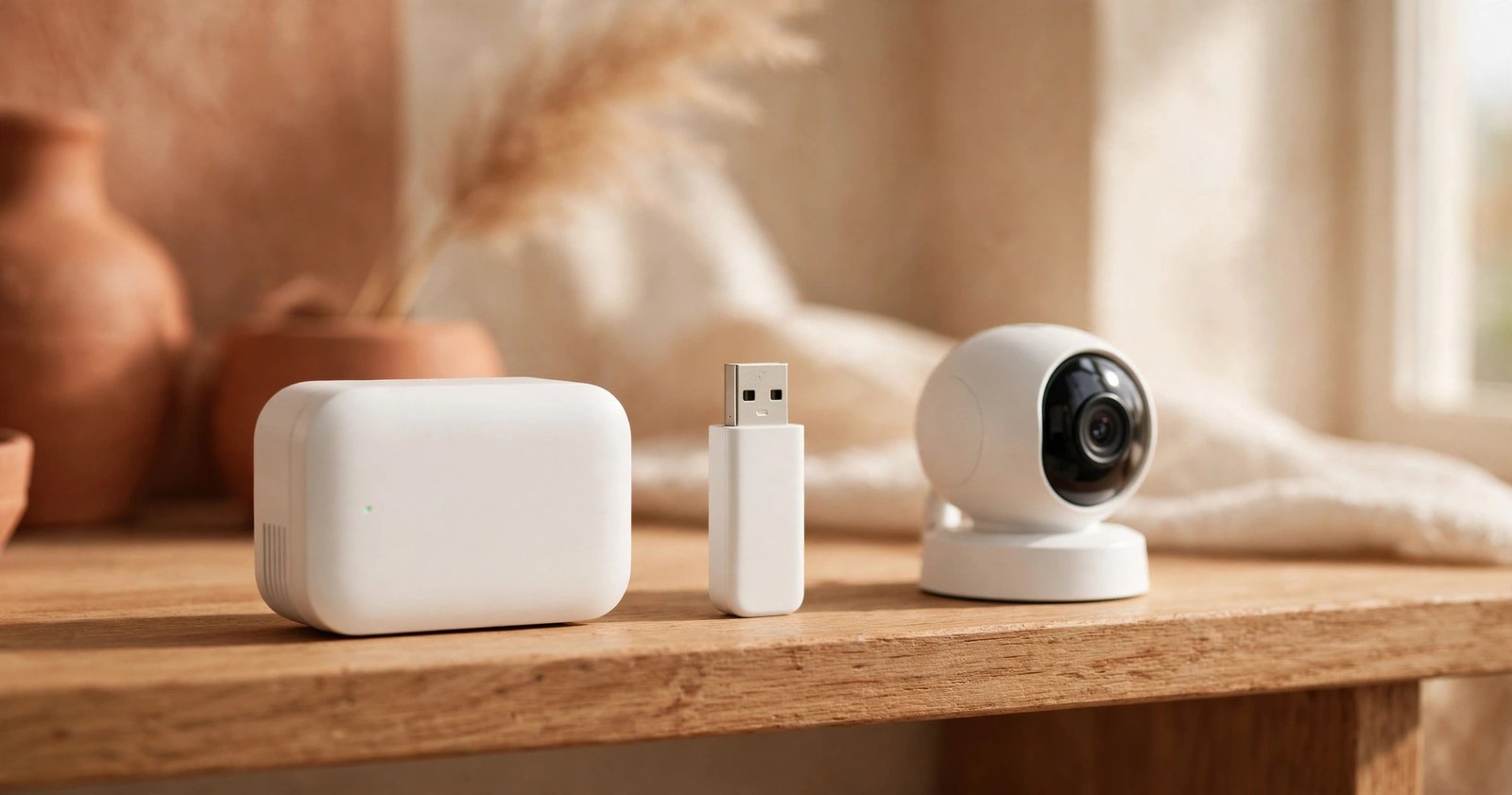
Blink Sync Module 2 Not Recording? 7 Fixes That Work

The short answer: Nine times out of ten, the USB drive is formatted wrong, full, or not seated properly. Reformat the drive to exFAT in the Blink app (Local Storage → Format USB Drive), confirm it has at least 375 MB of free space, pull it out and plug it back in firmly, then power-cycle the module. That sequence fixes most "not recording" cases in under ten minutes.
Grecian Finds is reader-supported. When you buy through links on our site, we may earn an affiliate commission — it never costs you extra.
Why won't my Sync Module 2 save clips to USB?
First, make sure you understand how Blink storage actually works — because half of all "not recording" complaints are expectations, not bugs.
Blink saves motion clips to the cloud only if you pay for a subscription. Without one, the Sync Module 2 plus a USB drive is your recording path: motion clips from your cameras save directly to the drive and you watch them in the Blink app's Clip List. That's the whole point of the module for subscription-free setups.
Two gotchas people trip over constantly:
- *If you do have a subscription, the USB drive stops being your recorder.* It switches to holding a once-daily backup of your cloud clips, and those backup clips aren't viewable in the app. So "my drive has clips I can't watch" is by design, not a bug.
- Legacy cameras (XT, XT2, Indoor gen 1) can't use local storage at all. They get 7,200 seconds of free cloud storage per sync module and ignore your USB drive entirely.
If neither of those explains your situation, work through these fixes in order. They're ranked by how often each one actually solves it.
How do I fix a Blink Sync Module 2 that won't record to USB?
- Check and reformat the USB drive (exFAT). This is the single most common failure. Blink officially requires a Type-A USB drive between 1 GB and 256 GB, in exFAT format (FAT32 and FAT are also accepted), with at least 375 MB free. Anything bigger than 256 GB won't be recognized. In the Blink app, open the Local Storage screen — if the app offers a "Format USB Drive" option, tap it and confirm. You can also format the drive on your computer first (choose exFAT), then plug it back in. Why it works: the module silently refuses to mount drives with filesystems it can't read or with corrupt partition tables. A fresh exFAT format gives it a clean, supported volume to work with.
- Make sure the drive isn't full. When free space drops below 375 MB, the module stops saving clips — and it does so quietly. You'll see a "USB Drive Full" message only if you actually open the Local Storage screen. Delete old clips from the app, copy them to a computer and clear the drive, or reformat it after backing up what matters. Why it works: a full drive is a stopped drive. Blink doesn't overwrite old local clips automatically, so once it's full, recording just halts.
- Reseat the USB drive. Pull the drive out, wait a few seconds, and push it back in firmly until it's fully seated. Why it works: heat cycles and vibration loosen USB connections over time. A half-seated drive reads as "no drive attached," and reseating forces the module to re-detect and remount it.
- Power-cycle the Sync Module 2. Unplug it for about 30 seconds, plug it back in, and wait until the LED settles to solid blue/green. Why it works: this clears the module's hung storage service and forces a fresh mount of the USB drive. It's the classic fix for a module that's stuck in a bad state after a botched mount, a Wi-Fi blip, or a firmware hiccup.
- Update the Blink app and the module firmware. Outdated firmware is a known source of local-storage flakiness — forum reports of USB recording mysteriously stopping have repeatedly lined up with firmware updates (on both sides: updates introducing bugs, and newer updates fixing them). Update the Blink Home Monitor app in your app store, then check the module's firmware status in the app. Why it works: you either pick up the bug fix Blink already shipped, or you eliminate an outdated-firmware variable before moving to the heavy steps.
- Remove and re-add the module in the app. This is the nuclear option short of replacing hardware: delete the Sync Module from the Blink app, re-run setup (scan the QR code on the unit), re-pair your cameras, and reinsert the USB drive. Yes, it's annoying. Why it works: corrupted module configurations and broken local-storage associations survive everything short of a clean re-add. Starting over rebuilds the entire pairing and storage setup from scratch.
- Try a different USB drive. If six fixes haven't worked, suspect the hardware itself. Cheap no-name flash drives degrade fast under constant write loads — and a dying drive can do more than fail to record: a corrupt stick can stall the module during boot or leave it in an error state. Stick to a brand-name USB 3.0 drive in the 1–256 GB range. A 128 GB SanDisk Ultra USB 3.0 flash drive is the safe, boring pick — boring is what you want here. Why it works: when the drive's flash cells are failing, no amount of formatting or rebooting can save it. Swapping in known-good hardware isolates the problem instantly.
And if the module itself is the faulty part — red LED that never clears, won't complete setup, storage fails with every drive you try — a replacement Blink Sync Module 2 is the last resort before calling Blink support with your proof of purchase.
FAQ
Can I use any USB drive with the Sync Module 2?
Not quite. It must be a Type-A drive between 1 GB and 256 GB — anything larger won't be recognized. ExFAT is the recommended format (FAT32 and FAT also work), and the drive needs at least 375 MB of free space. The Blink app can format the drive for you on first insert. Drives that fall outside these specs are the cause of most "drive not recognized" headaches.
Do I need a Blink subscription for the cameras to record?
No. With a Sync Module 2 and a USB drive installed, motion clips record locally with no subscription — that's the subscription-free path. The trade-off: without a plan, cloud storage, smart person/vehicle alerts, and saving Live View sessions aren't available. With a subscription, cloud clips get saved to Blink's servers and the USB drive becomes a once-daily backup you can't browse in the app.
Why do my cameras work fine but nothing saves to USB?
Two likely reasons. First, your cameras might be legacy models — XT, XT2, or Indoor (1st Gen) cameras don't support local storage at all and only use their 7,200 seconds of free cloud storage per sync module. Second, if you're subscribed to a Blink plan, the USB drive only holds daily cloud backups (not viewable in the app), so your motion clips are in the cloud, not on the drive. The Video Doorbell, Outdoor, Indoor (3rd Gen), and Mini cameras all support local storage — which is one reason Blink's doorbell works well in a no-subscription setup like the ones in our best video doorbell without subscription guide.
My drive shows "USB Drive Full" — now what?
Copy any clips you want to keep to a computer first, then either delete old clips from the app's Clip List, transfer files off the drive to free space, or reformat the drive entirely (formatting erases everything, so back up first). For a set-and-forget setup, a 128 GB or 256 GB drive gives you far more headroom than a tiny stick — check our current picks if you're shopping.
The bottom line
A Sync Module 2 that won't record is almost always a drive problem, not a module problem: wrong format, full drive, loose connection, or a dying stick. Reformat to exFAT, keep 375 MB free, reseat, reboot — that order, before you touch anything else. And if you're buying a drive for this job, get a brand-name one in the 128–256 GB range and be done with it. The cheapest USB stick you own is not the place to save money when it's holding your security footage.

